

The iOS automations that have actually been worthwhile
This used to be the most ignored app on my phone, now it saves me so much time. Here’s what was worth it.

Welcome to The Outline, a weekly letter for people building a business and a life they actually enjoy. Each issue shares one idea to help you work better, feel better and grow in a way that feels good.
Subscribe to get the next edition in your inbox. 💌
Shortcuts used to be the most ignored app on my phone. It was in the same category for me as games, the ones you resent being there and immediately delete. But when it came back in the most recent iOS update I thought it could be worth investing some time into. And it’s been surprisingly worthwhile.
I’ve been systemising every other element of my life, why not make my phone more seamless too? I mentioned that the dark evenings had me getting through long awaited to-do list tasks, like updating my website, and I’ve fallen down a lot of TikTok and Reddit holes setting these up.
So here’s what I found worth it, that genuinely save me time every week, focused on:
Functionality: The ones that make your phone smarter without thinking about them
Actions & tasks: Shortcuts that help me stay in flow and remember important items
General guidance: You need a shortcut to configure your conditions and actions, and then an automation to trigger it. Automations are found as a tab in the Apple shortcut iOS app.

Functionality
These ones make your phone smarter even thinking about them.
1. Red light filter
Settings then automation
Every night at 9pm my phone automatically goes to red light mode. This does two things: it removes the blue light from your device ahead of you trying to sleep, and it makes your phone really boring. Pictures and videos look weird, and your social apps cease to work properly. This has been more effective than any time blocking app. The red light goes on and my brain just goes ok time to put the phone away.
To set up:
Settings:

- Settings > Accessibility > Display & Text Size > Color Filters > On > Color Tint

- Swipe Intensity to max, and Hue to min

- Then toggle Color Tint off again

Optional step (add as a button-led trigger):

- Settings > Accessibility > Accessibility Shortcut > Color Filters.

This means you can click the lock button three times and your phone screen goes red.

Automation:

- Time of day (set time), Repeat Daily, Run Immediately > Create New Shortcut > Search for Color Filters and select ‘Set Color Filters’ > Turn colour filters on
2. Lower power mode
Automation
I’ve set this up to flick on when my battery gets under 30%, instead of waiting for 20% or lower.
To set up:
Automation:

- Battery Level > Falls Below 30% > Run immediately > Search for Set Low Power Mode > Turn Low Power Mode On
3. Open Spotify when connected to my Bluetooth speaker
Automation
This is super lazy, but the removal of friction is so seamless it delights me daily. This automatically opens up your music player of choice when you connect to your speaker.
To set up:
Automation:

- Bluetooth > Select your Speaker, Is Connected, Run Immediately > Open App > Spotify
4. Turn on alarm when not at home
Shortcut then automation
I use an alarm clock at home (and try to leave my phone elsewhere), but I always worry about remembering to turn my phone alarm back on when I’m travelling.
To set up:
Shortcut:

- Get Wifi network’s NetworkName

- If NetworkDetails is not YourWifiName [enter this manually]

   + Toggle Alarm: Turn 06:30 On

   + Show notification: Title: "Away from home - alarm is on"

- Otherwise:

   + Toggle Alarm: Turn 06:30 Off

- End If


Automation:

- Time of day (set time), Repeat Daily, Run Immediately > Select your Daily Alarm shortcut
5. Clean up photos
Shortcut then automation
Clean up your camera roll by breaking it down to a day by day view. Every day you can have a quick scan and delete all those old screenshots.
To set up:
Shortcut: A bit more complex - there are a few pre-built shortcuts you can review/download* (you’ll also need to update in your settings>shortcuts>advanced>allow delete).
Automation:

- Time of day (set time), Repeat Daily, Run Immediately > Select your Clean up photos shortcut
* Always make sure you review the automation and don’t just download blindly. I prefer to review & rebuild myself so I know what I’m adding to my phone security wise.
Actions & tasks
Small automations that help me stay in flow and remember important items
6. Add your tasks to your lock screen
Shortcut then settings
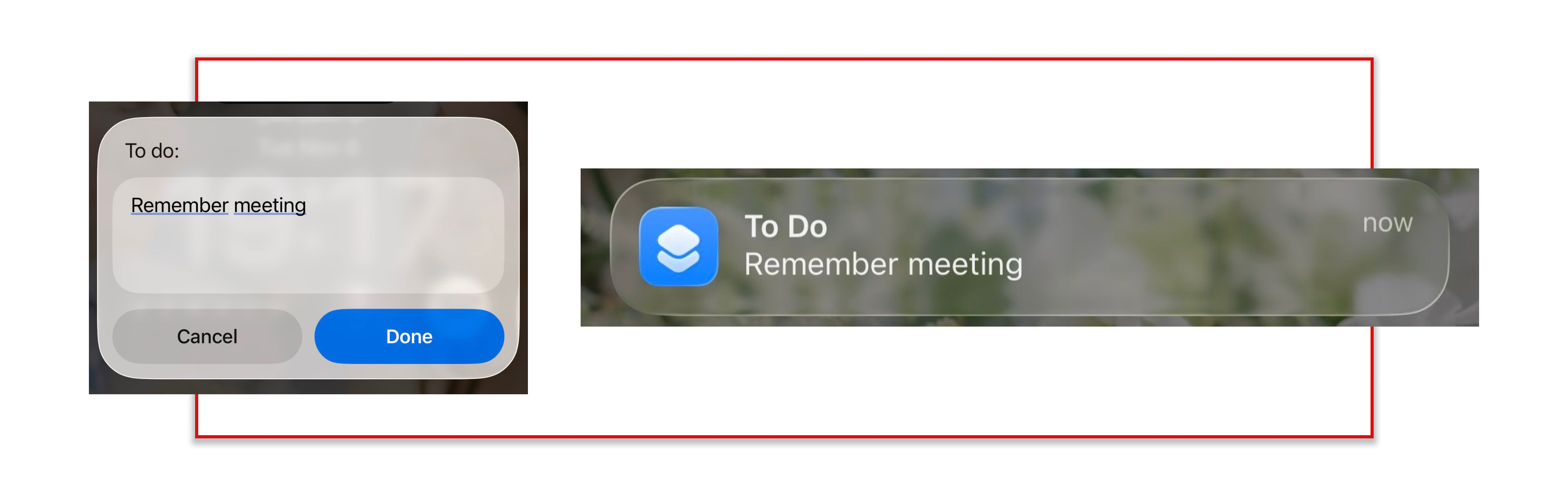
This shortcut allows you to add things you need to remember to do to your lock screen via a custom notification. I’ve set this up to trigger via the action button.
To set up:
Shortcut:

- Ask for input > Ask for Text with To do: > Show Notification Ask for Input

Settings:

- Action button > Scroll to select Shortcut > To Do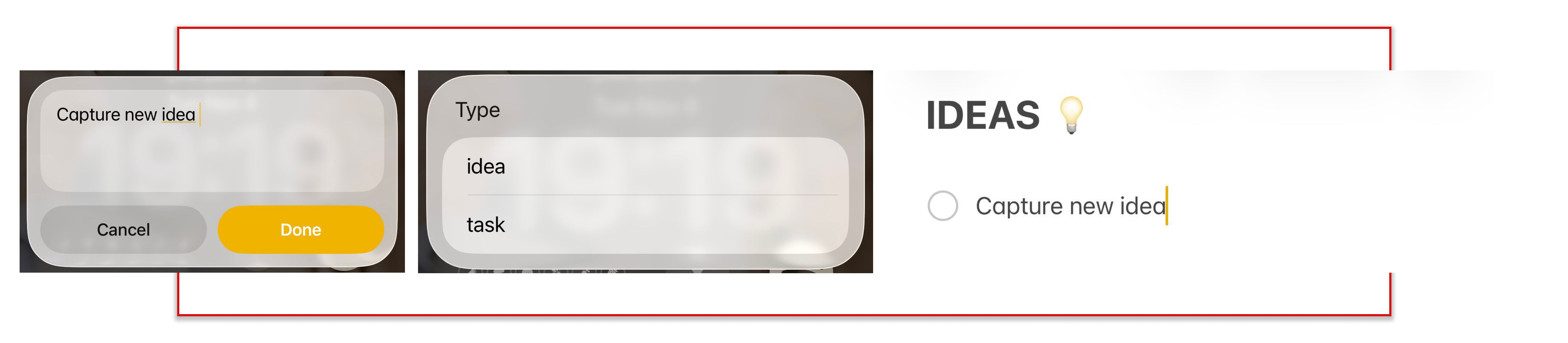
7. Quick capture
Notes, shortcut then lock screen
I am a big fan of a quick capture—getting all your ideas down without disturbing your flow. Too often we forget what we think we’ll remember. This allows you to get the thought down and then return to the task at hand. I’ve written more about the power of the quick capture as a simple system to organise your thoughts.
I’ve added this to serve two purposes: Ideas and Tasks. The shortcut then adds whatever I need to capture to a list in the correct note, according to the categorisation I pick. I’ve set this up to be an action widget from my lock screen.
To set up:
Notes:

- Set up two notes, IDEAS and TASKS, in your Notes app

Shortcut:

- Ask for input > Ask for Text with Quick capture

- Choose from menu > Choose from menu with Type

    + idea

    + task

- Idea > Append to Note > Append checklist item Ask for input to IDEAS

- Task > Append to Note > Append checklist item Ask for input to TASKS

- End Menu

Lock screen:

- Hold to bring up options > Customise > Select widget (I did bottom right) > Run Shortcut > Quick Capture > Done
Playing around with these has been equal parts fun, frustrating and rewarding. Every small system saves a bit of energy you can use elsewhere… and that’s the whole point. Less effort, more ease—with a side of learning something new.
If you’ve tried any out, have recommendations or need a hand, drop me a comment and I’ll get back to you.
And if you’re tackling this on a bigger scale, building systems that help you scale your work, give me a shout. This is what I love helping founders and teams do.
👋 If you’re designing your next chapter—your week, your work, or wider business—I offer 1:1 support. Connect or message me below.
PS - If you liked this kind of curation, Verse is my other love letter to great books. There’s even a subscription that sends books straight to your door.
From the archive:


